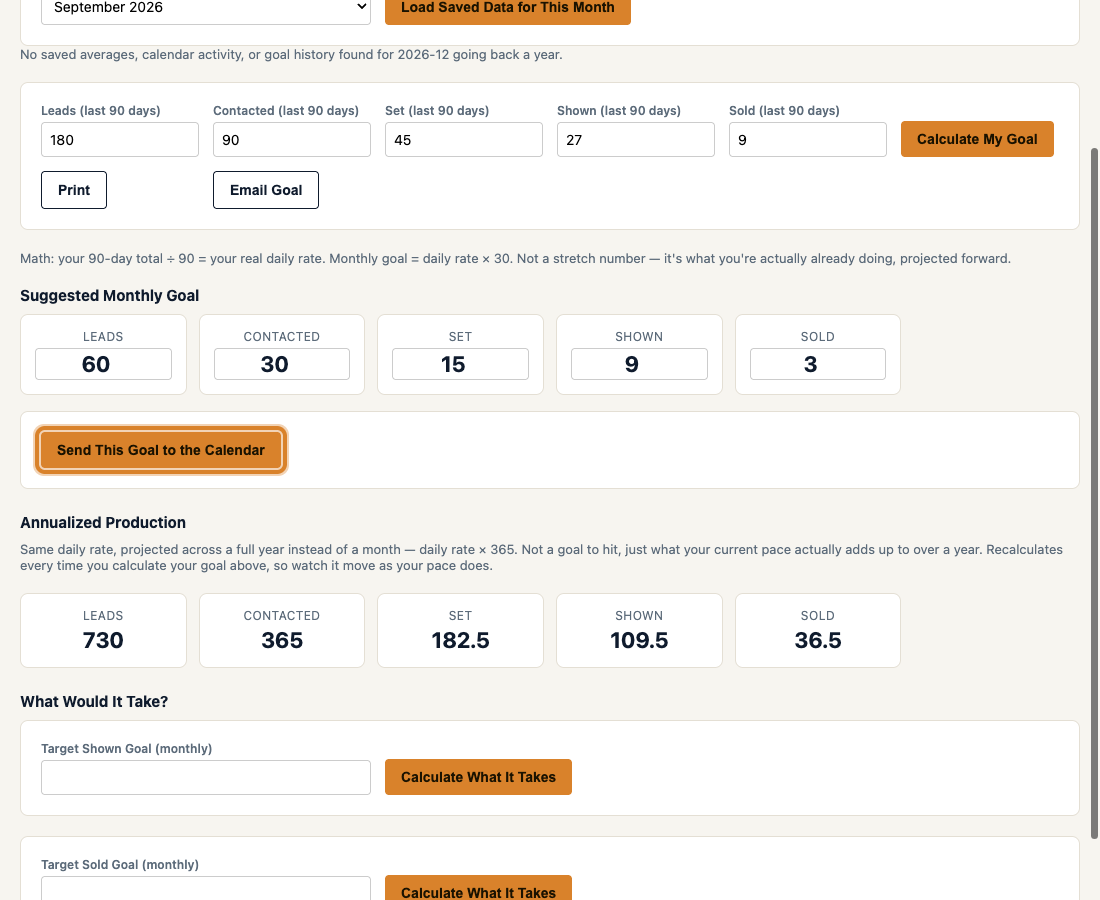
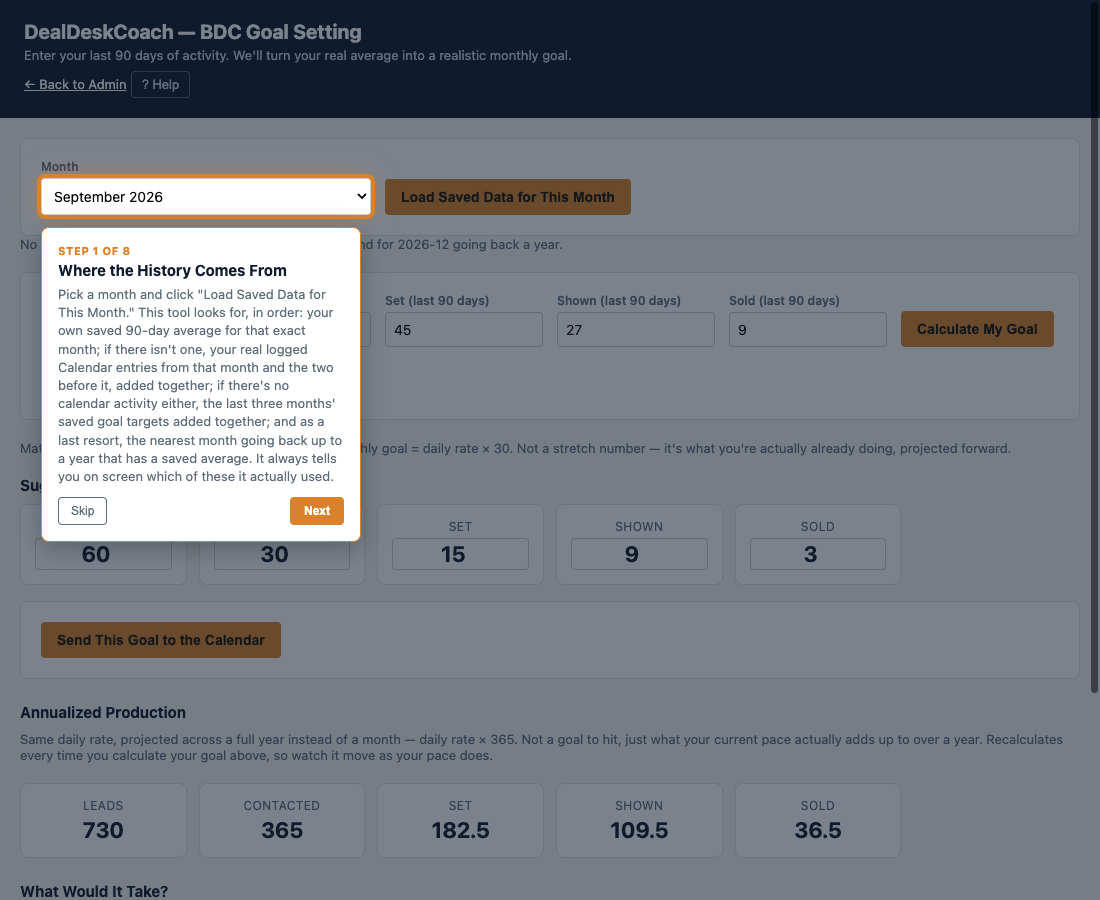
1First Time: Create Your Workspace
DealDeskCoach gives you the tools — the appointment calendar, the forms, the reminders— the calendar, the deal log, the forms. Your own workspace file is where your saved information actually lives. It's a single file that stays on your computer — never on DealDeskCoach's own computers, never sent anywhere. You choose where it's kept, the same way you'd choose where to save a Word document or a spreadsheet.
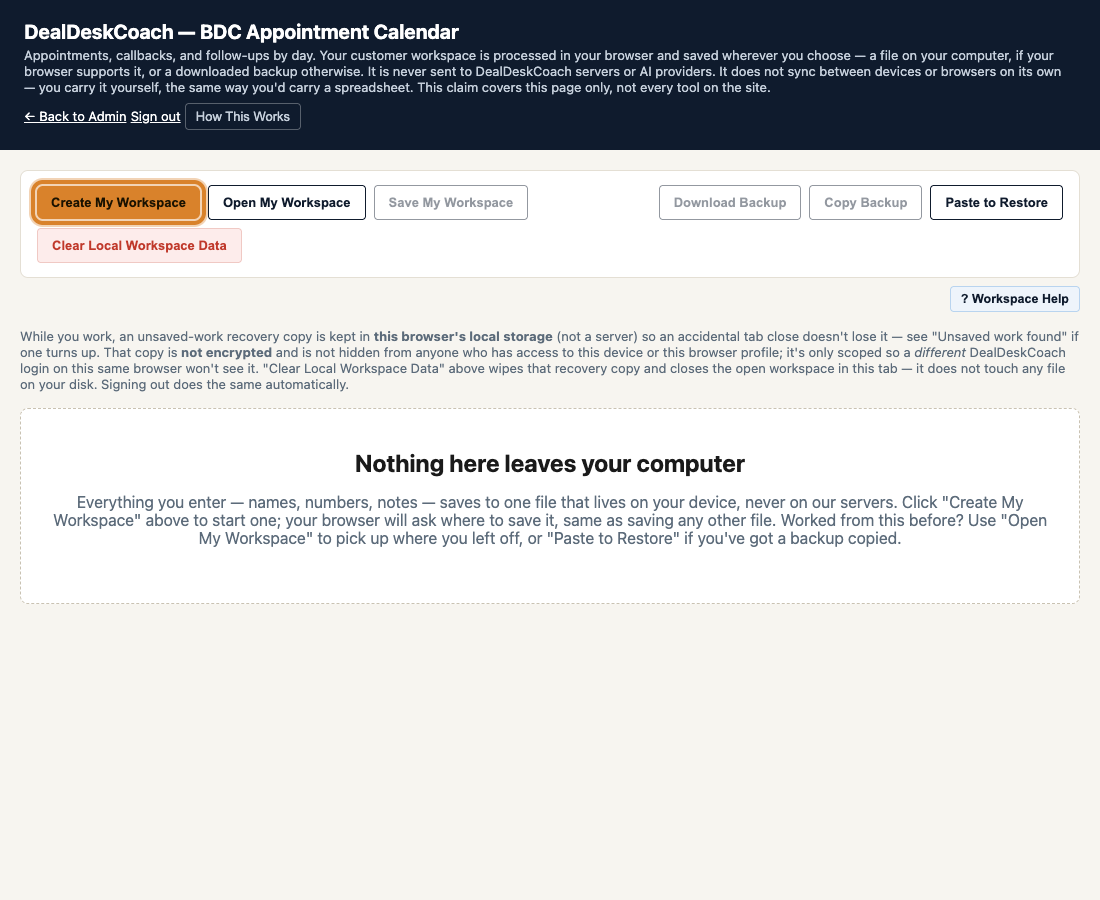
- Click Create My Workspace.
- Your browser opens its own save window — this looks a little different on every computer, but it always asks two things: where to put the file, and what to call it.
- Pick a folder you'll remember — a spot like Documents or Desktop works well. Avoid a folder that gets cleaned out automatically, like a Downloads folder someone regularly empties.
- Give the file a name you'll recognize later, for example Anytown Motors Appointments. Leave the ending your computer adds after the name — the part like
.json— exactly as it is. That ending is what tells DealDeskCoach it's looking at the right kind of file; changing it can stop the file from opening correctly later. - Click Save in that window. You're back in DealDeskCoach, and your new workspace is open and empty, ready to use.
2Understand the Two Save Buttons
Save My Workspace saves your updated calendar into your file.
Save My Workspace saves your updated calendar into your file.
These do two different jobs, and mixing them up is the single most common way people think they've saved something when they haven't:
- Save Entry is on the form when you're adding or editing one appointment. It puts that appointment on the calendar you're looking at — on your screen, right now.
- Save Deal is on the form when you're logging one deal. It puts that deal on the calendar you're looking at — on your screen, right now.
- Save My Workspace is the button in the toolbar at the top. It takes everything currently on your screen — everything you've added since you opened this workspace — and writes all of it into your file.
3Save Your Work
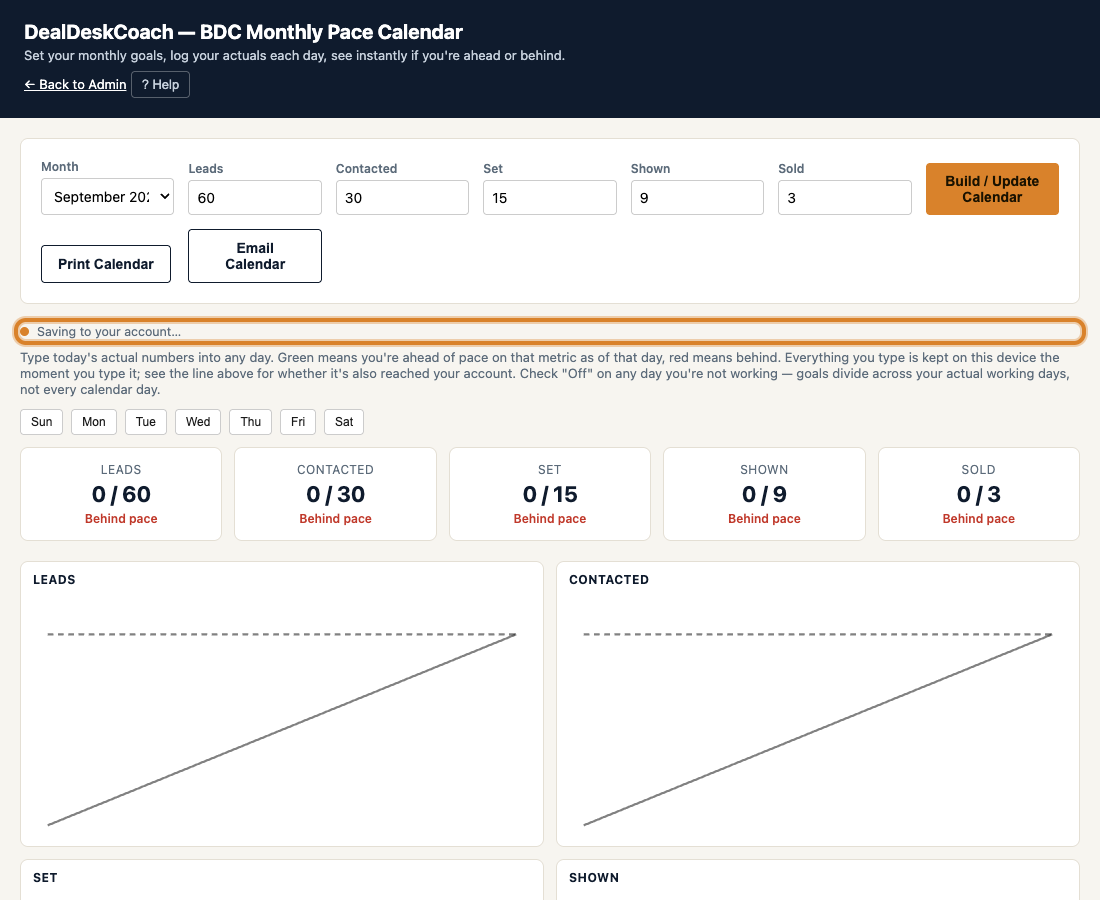
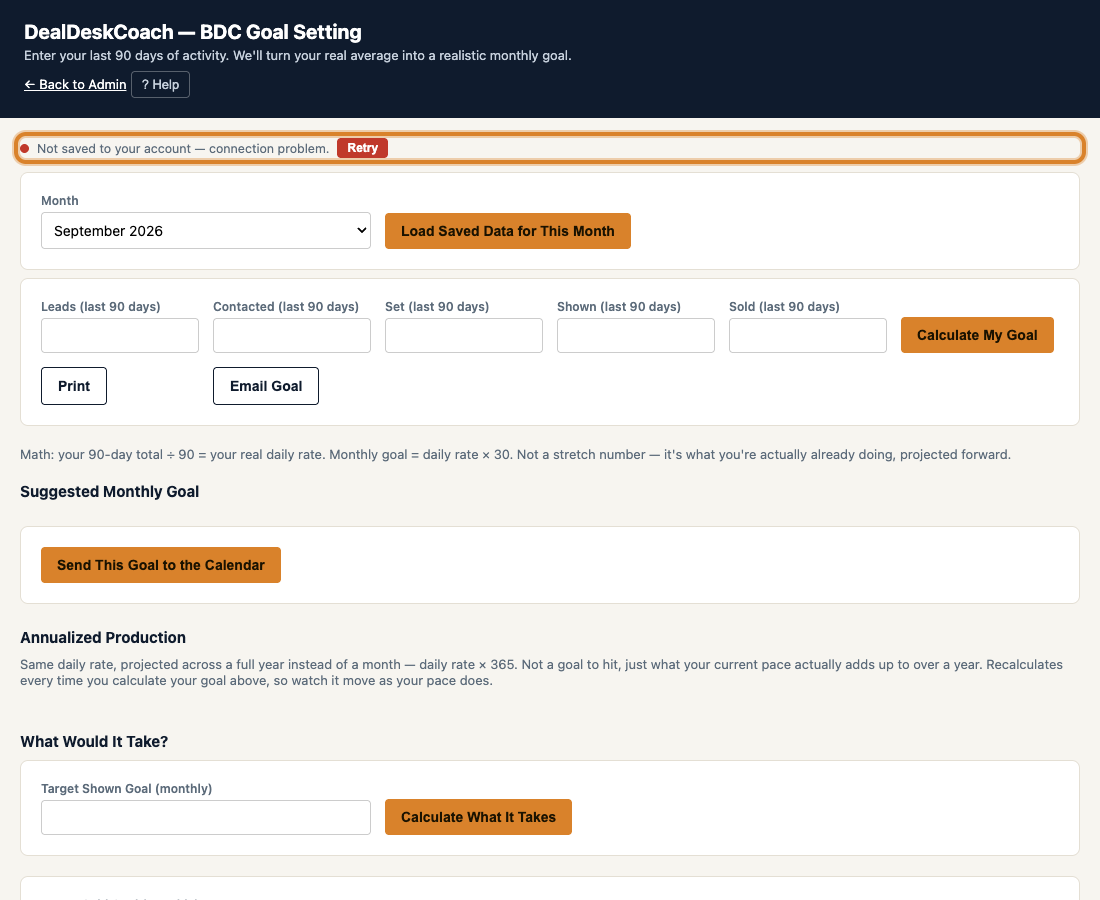
- After adding or changing something, look at the line just under the toolbar. A colored dot and a short message tell you where things stand.
- Click Save My Workspace.
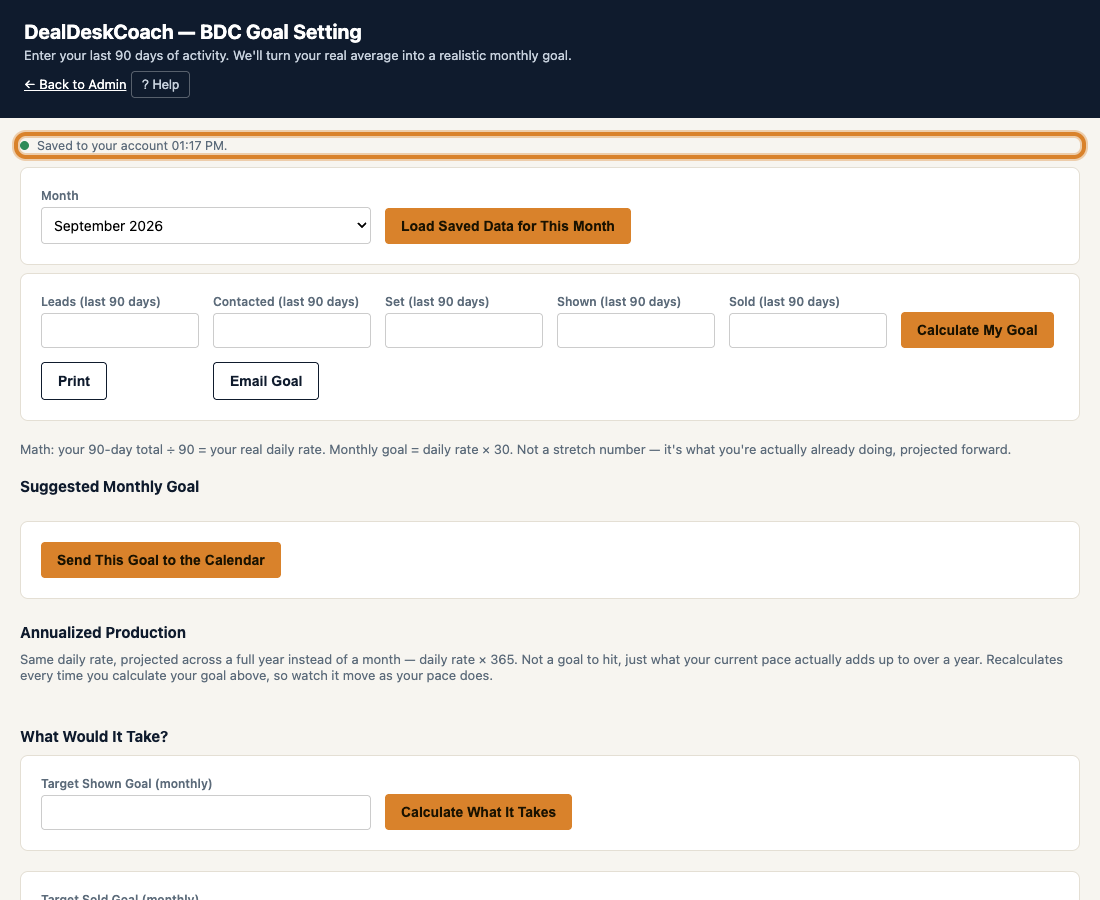
- Watch that same line. It changes to a green dot and a message telling you exactly when it was confirmed saved.
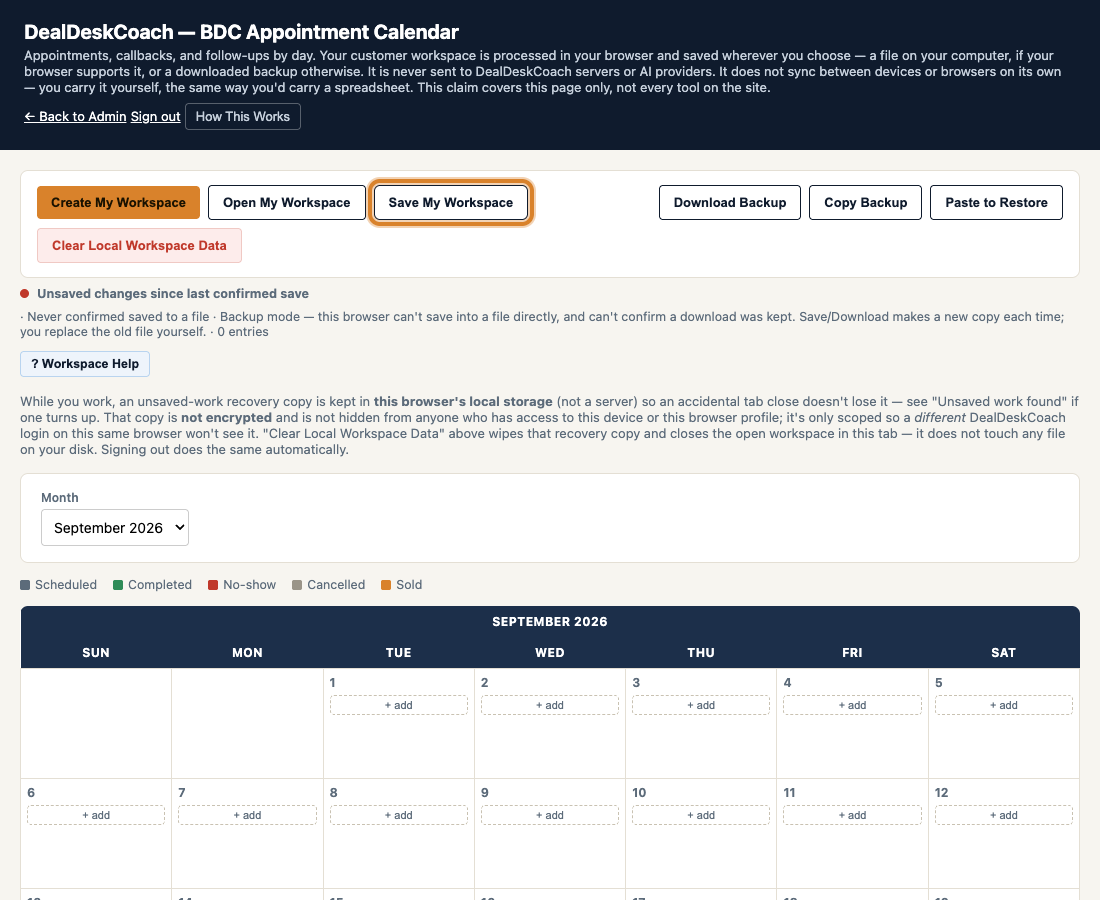
A red dot and "Unsaved changes since last confirmed save" means your file doesn't have your latest changes yet.
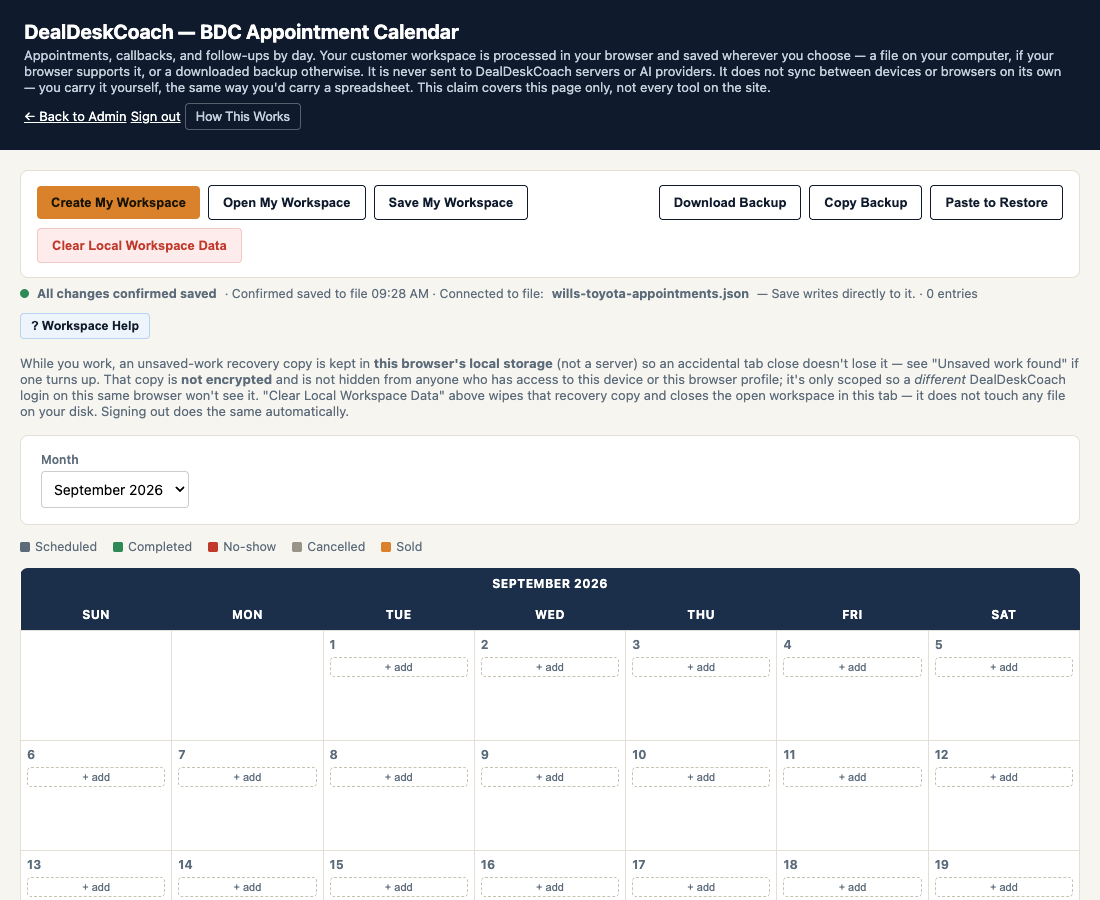
"All changes confirmed saved" plus a time, and the name of the file it saved into — that's your proof it worked.
4Return Another Day
- Open DealDeskCoach and log in as you normally would.
- Click Open My Workspace.
- Your browser's own file window opens — the same kind of window you saw in Section 1. Find and select the file you saved before, then confirm.
- Check that your information is actually there before you start working.
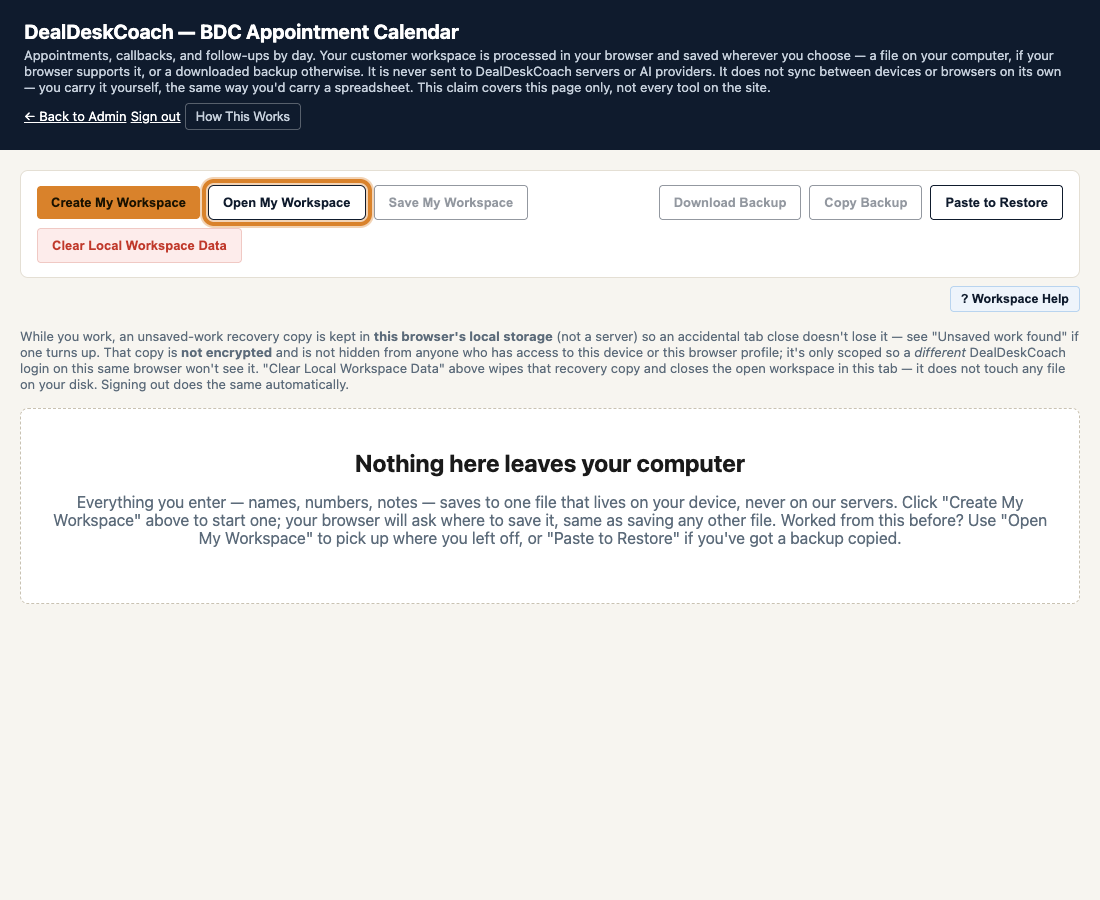
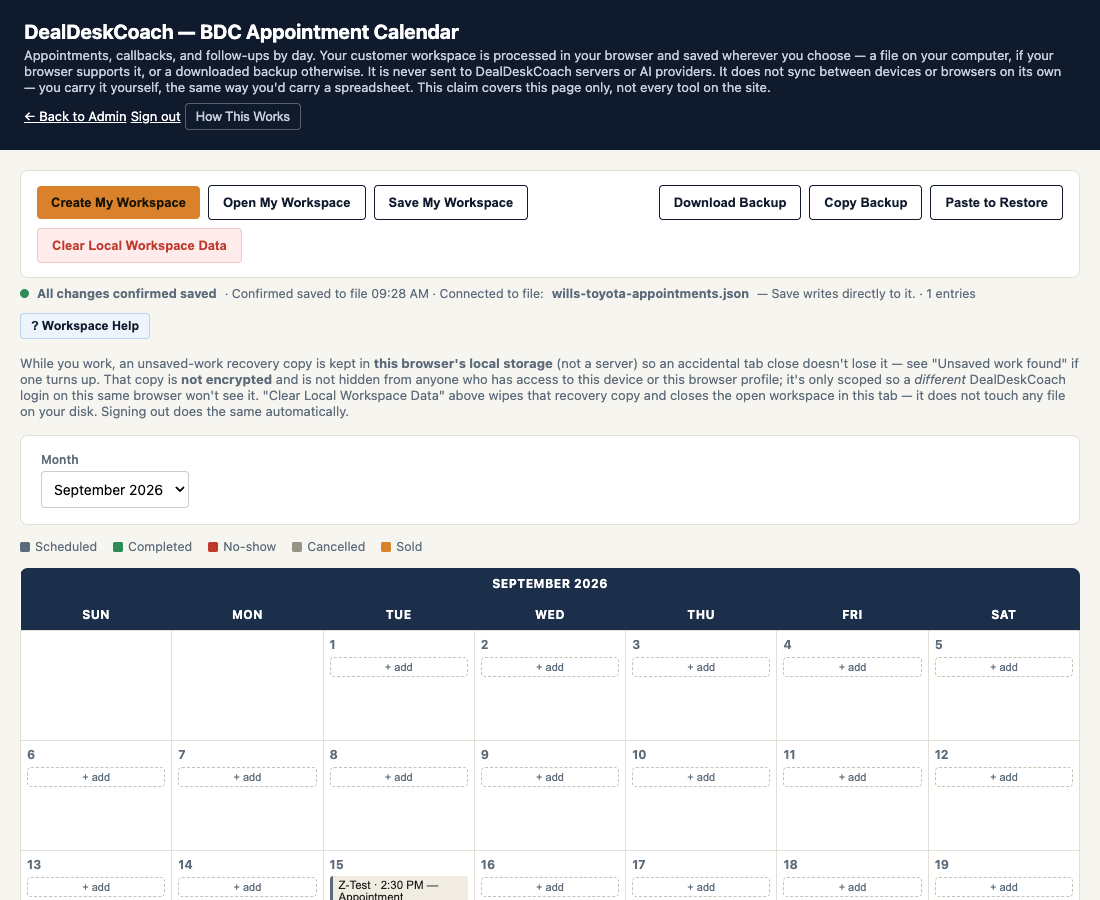
A saved appointment ("Z-Test") showing up on the calendar right after reopening the file — the same file, picked up right where it was left.
The equivalent for the F&I Desk looks the same in principle — open your file, and whatever you logged and saved before is sitting right there on the calendar or in Objections, Follow-ups, or Contracts outstanding.
About "unsaved work found"
Sometimes, when you open DealDeskCoach, it may mention a recovery copy from your browser. This is not the same thing as your saved file, and finding one is not proof anything was ever actually saved. It's a safety net your browser keeps in case a tab closed by accident before you got to click Save My Workspace — useful for recovering something you nearly lost, but it's never a substitute for actually saving. Always confirm the real, saved file is what you're working from.
5Allow File Updates
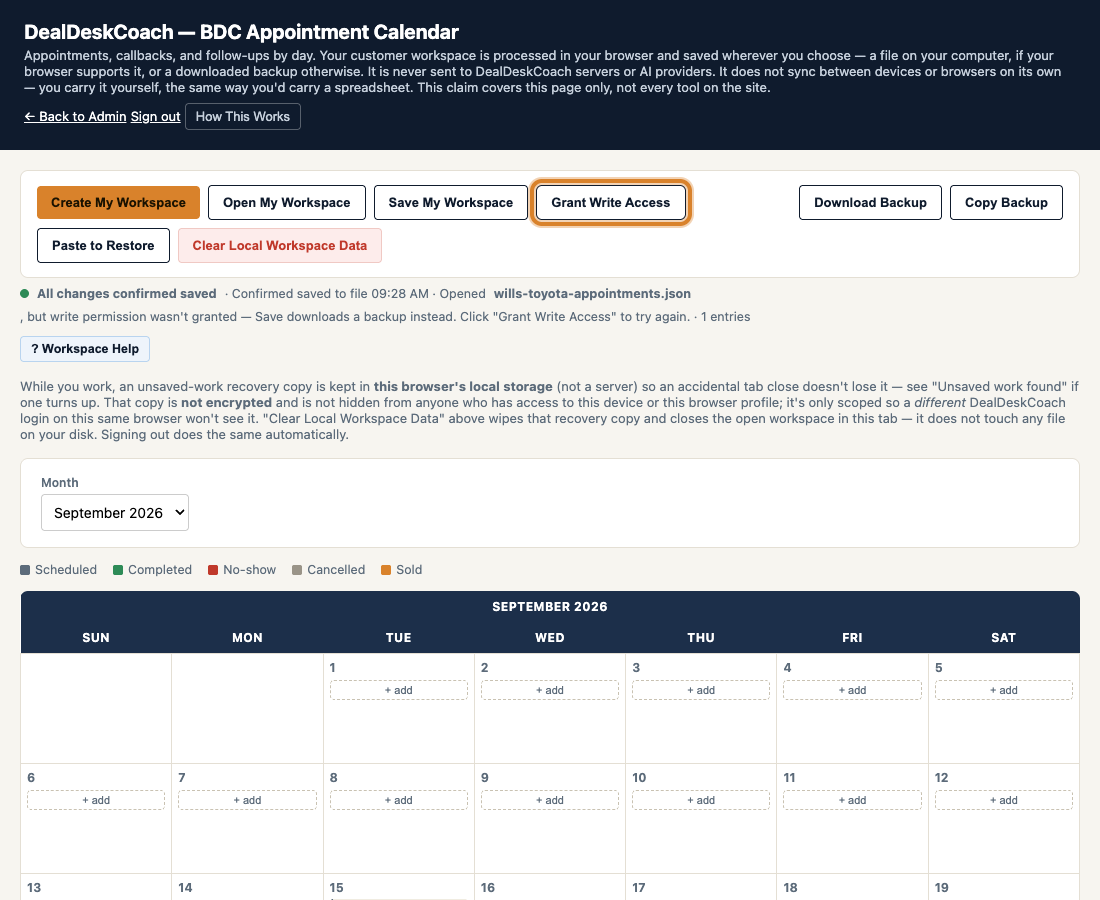
The first time you open a file in a browser that supports it, that browser may ask your permission before letting DealDeskCoach update it directly. This is your browser protecting you — it wants your yes before any website writes to a file on your computer.
This permission only ever applies to the one specific file you picked. It doesn't give DealDeskCoach access to any other file, or to your computer generally.
- If your browser asks, click Allow (wording varies by browser).
- If it doesn't ask, or if you clicked something else by mistake, look for a Grant Write Access button that appears in the toolbar.
- Click it, and answer the browser's prompt the same way.
6When Saving Downloads a New Copy
Not every browser can update a file in place. When yours can't — or when it hasn't been given permission yet — you'll see this instead:
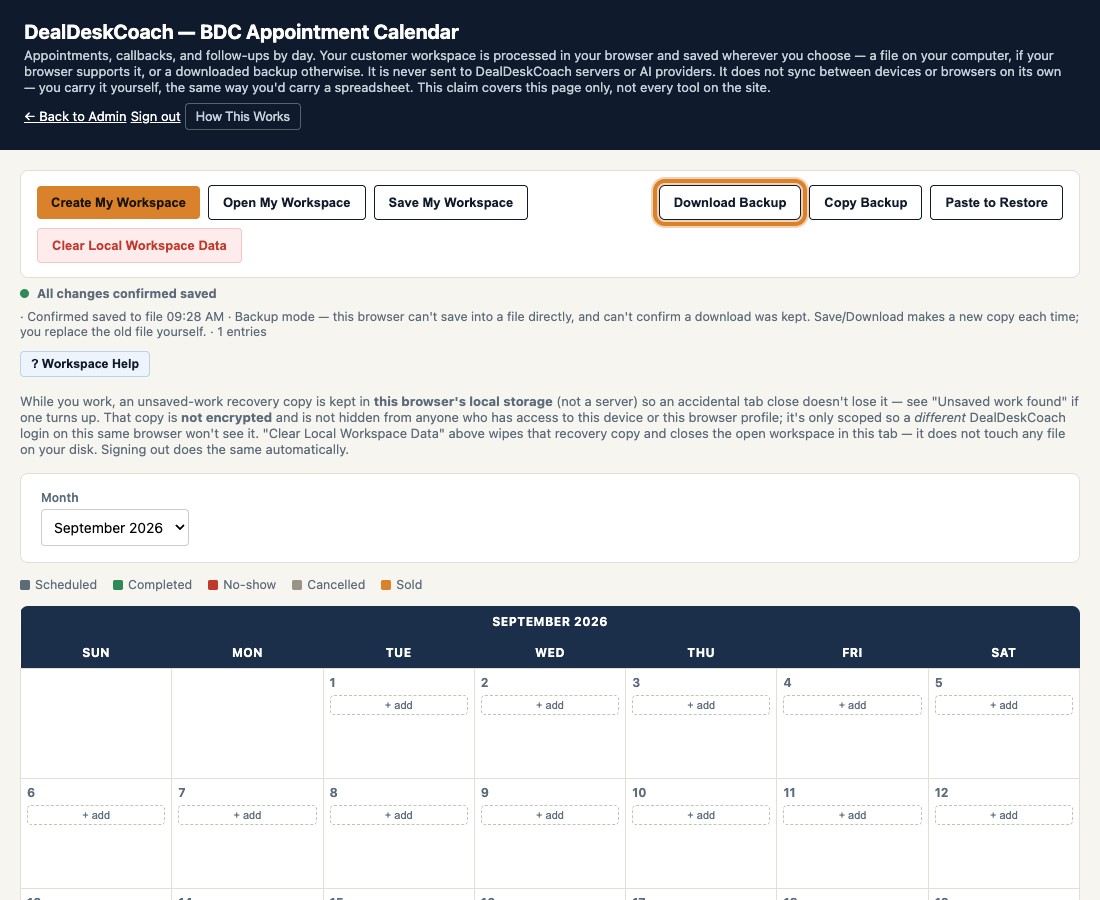
- Click Save My Workspace (or Download Backup) as usual.
- Your browser downloads a new file, typically into a Downloads folder.
- Next time you want to keep working, use Open My Workspace and pick the newest downloaded copy — not the original file from Section 1.
Not every browser needs to work this way — some can update your original file directly, as shown in Sections 3 and 5. If yours can, that's simpler and there's nothing further to do here.
7Troubleshooting
I can't find my file
My latest changes are missing
Write permission was denied
I have several downloaded copies
I switched browsers or devices
I cleared browser data
A prompt asks to attach the file to an AI assistant
8Backup, Privacy, and Shared Computers
Where things live: your working file is wherever you saved it in Section 1 — a real file on your computer, exactly like a Word document or a spreadsheet. Separately, your browser keeps a small, temporary recovery copy of whatever you're actively working on, purely so an accidental tab close doesn't lose your last few minutes of changes. That recovery copy is not encrypted, and it is not hidden from anyone else who can use this device or this browser profile.
Clear Local Workspace Data
This button removes that temporary recovery copy from this browser, and closes the workspace you currently have open in this tab.
It does not touch, move, or delete your actual workspace file. That file is untouched on your computer — you'd need to delete it yourself, the same way you'd delete any other file, if you ever wanted it gone.
About syncing
DealDeskCoach does not sync your workspace file between devices on its own — there's no DealDeskCoach server copy to sync from. If you chose to save your file inside a folder that a service like iCloud Drive, OneDrive, Google Drive, or Dropbox already syncs, that service may sync it for you, the same way it would sync any other file you put there — that's between you and that provider, not something DealDeskCoach controls or is aware of.
Getting help without leaving the page
Look for the ? Workspace Help button next to the status line — it's always there once you're working in the tool, not just something that pops up once and disappears.
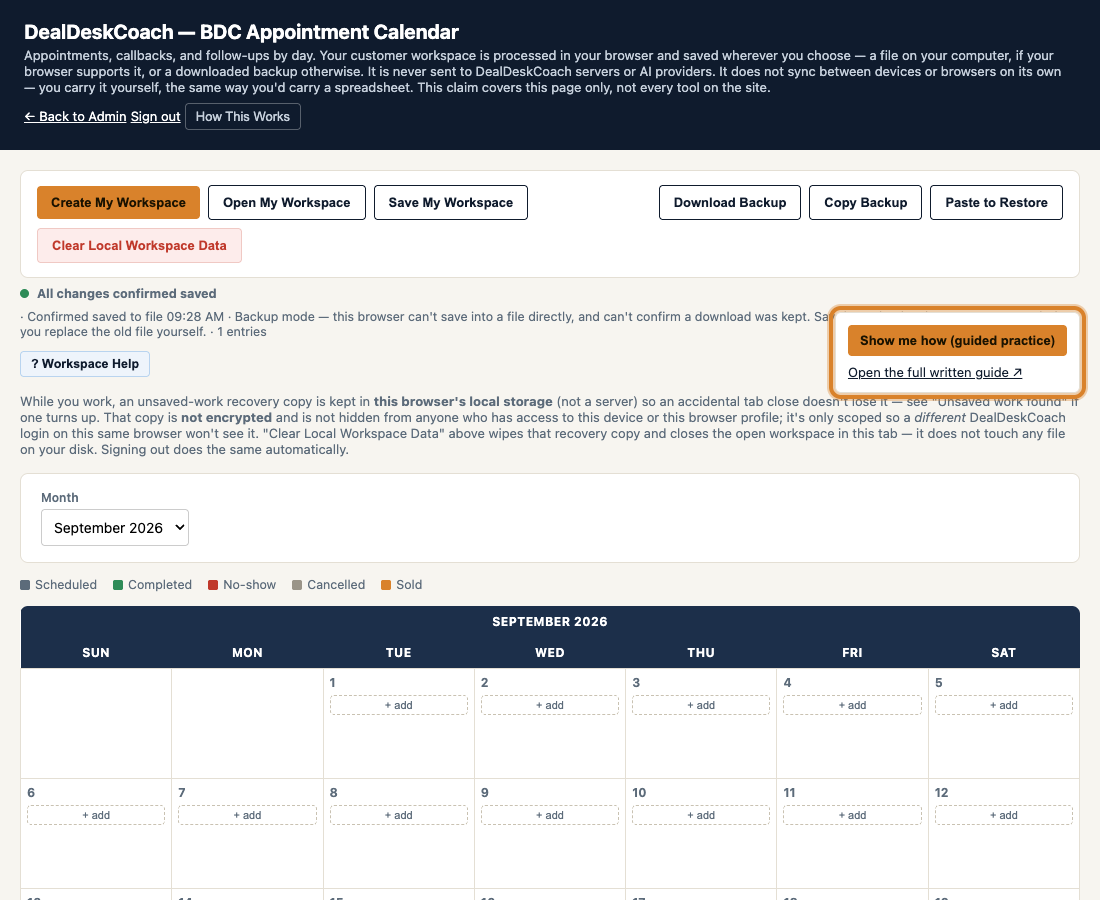
Clicking it offers two things: a short guided walkthrough you can step through with Back, Next, Skip, and Replay — it uses a made-up practice entry so nothing real is at risk, and walks you through creating a workspace, adding and saving that practice entry, saving the whole workspace, and what to expect when you come back to it later — and a link straight back to this full guide, any time you want the complete version instead of the short walkthrough.